Once you've made your GitHub account, let an administrator from
the DHIL know your GitHub username and they will invite you to join
the repository. This invitation may take up to an hour to wend its
way through the email system (especially if you are using your SFU
email). Once you receive that email, make sure to accept the
invitation for the lim repository.
Once the Git Client is installed, you must now configure oXygen
to use your user account. To do that, you must first generate a
Personal Access Token (PAT) in GitHub to use as a password.
Generating GitHub Token
Navigate to GitHub
(https://github.com),
log in (if you aren't already), and then click on your user
icon in the right hand corner to open the side menu. Then
click "Settings":
github-pat-1
In settings, click "Developer Settings" at the
bottom of the left-hand menu
github-pat-2
Then click "Personal access tokens" and select
"Tokens (classic)"
github-pat-3
Click on the right hand side dropdown menu labelled
"Generate new token", and select "Generate
new token (classic)"
github-pat-4
Give your token a name (e.g. oXygen) and no expiration
date
github-pat-5
Then, select the "repo" and "user"
scopes
github-pat-6
Click "Generate Token" at the bottom of the
screen
github-pat-7
You will now see a token, which is effectively the same
as a password for GitHub. Make sure to copy this by
selecting the copy button (and keep the tab open)
github-pat-8
Cloning the Repository
In oXygen, go to the Git menu and select "Clone New
Repository":
github-pat-8
In the dialog box, add the following:
Repository:
https://github.com/sfu-dhil/lim
Checkout branch: <Default
branch> Destination path:
[Wherever you want to put this folder]
github-pat-10
At this point, you may be prompted to authenticate. To do
that, put in your GitHub username and paste the GitHub token
generated earlier as the password:
github-pat-8
You should now see the repository cloning:
github-pat-11
Once it has downloaded, you will be prompted to select a
project. Make sure that you select the
"lim-data.xpr" project, since that will have
additional features for encoding:
github-pat-12
You may get a dialog box that asks you to accept the
project; click yes:
github-pat-12
Misc.
Line Wrap
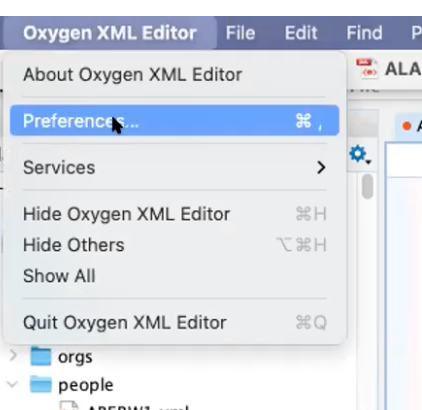
Go to the top panel, click on “Oxygen XML Editor” and select
“Preferences”.
image8
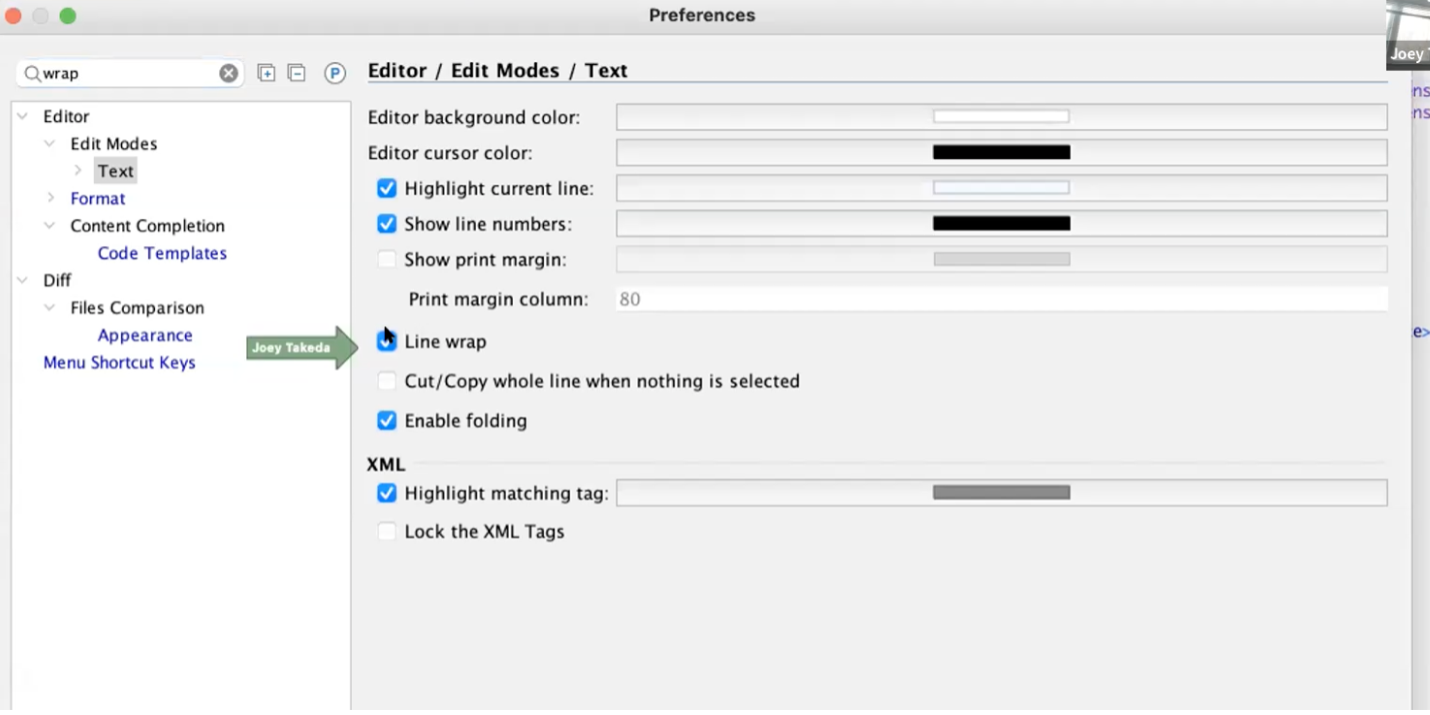
In the “Type filter text” box, type in the word “wrap”. Then,
under “text”, check the box next to “Line wrap”.
image9'